
Building Custom WordPress Themes from Scratch
Master the fundamentals of theme development using PHP, CSS, and WordPress template hierarchy. Learn how to create professional, functional themes without relying on builders.
Why Build Custom Themes?
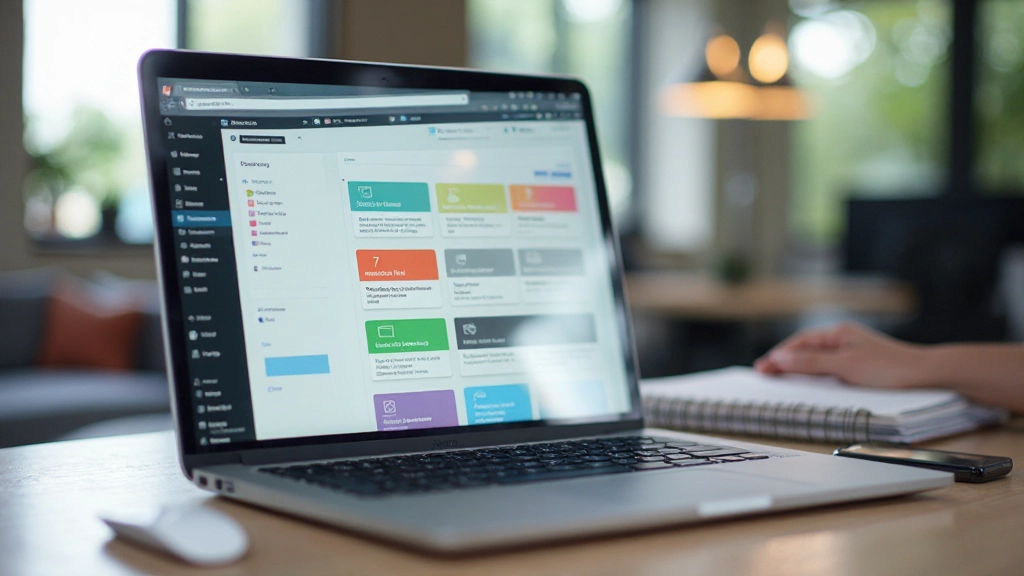
Page builders are convenient, but they’re not always the answer. When you understand how WordPress themes work from the ground up, you’ll create faster sites, have more control over functionality, and build solutions that actually fit your specific needs. It’s not as intimidating as it sounds — you’ll be surprised how much you can accomplish with basic PHP and the right foundation.
This guide walks you through the essentials. You don’t need to be a developer to follow along, though some familiarity with HTML and CSS definitely helps. We’ll cover the template hierarchy that powers WordPress, the functions that make themes tick, and the best practices that separate professional themes from amateur attempts.

Understanding the Theme Structure
Every WordPress theme needs specific files and folders. Here’s what you’re actually working with:
The Essential Files
Your theme folder needs several key files to function. The
most important?
style.css
— this tells WordPress what your theme is. It’s got a comment
block at the top with your theme name, description, version,
and author information.
Then you’ve got
index.php, which is your fallback template. If WordPress can’t find a
more specific template file, it uses this one. You’ll also
need
functions.php
for adding theme features, registering menus, and customizing
WordPress behavior.
Most themes include these templates:
header.php,
footer.php,
sidebar.php,
single.php
(for individual posts), and
page.php
(for pages). You don’t need all of them immediately — start
with the basics and expand as you go.
The Template Hierarchy in Action
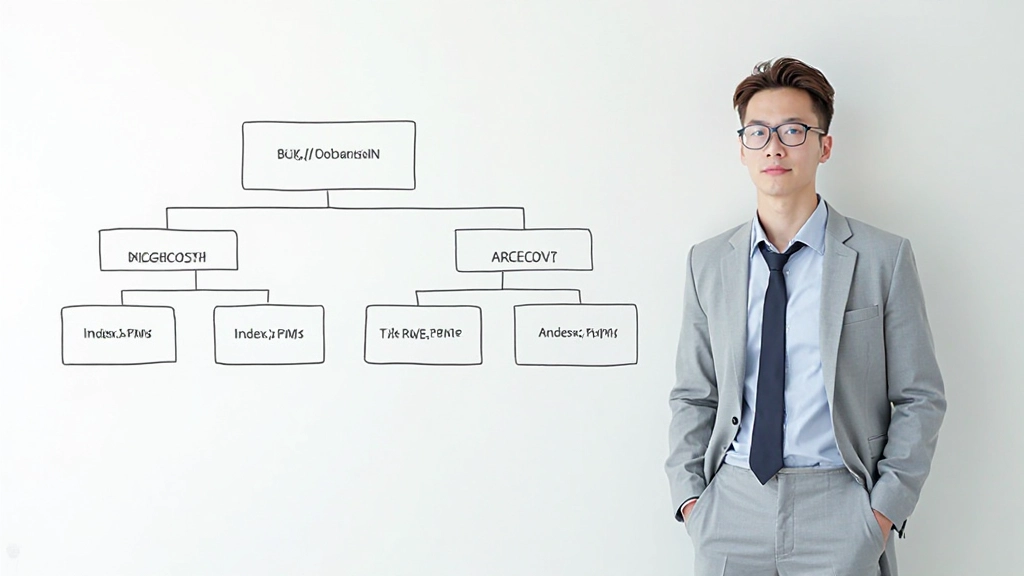
WordPress follows a specific order when choosing which template file to display. Understanding this hierarchy saves you from overcomplicating your theme.
How WordPress Chooses Templates
When someone visits a single blog post, WordPress doesn’t
automatically use
index.php. It looks for
single.php
first. If that doesn’t exist, it uses
index.php. Same logic applies everywhere — WordPress always looks for
the most specific template available.
For category pages, it checks for
category-{slug}.php
first, then
category-{id}.php, then
category.php, then
archive.php, and finally
index.php. You don’t need to create all these variations — just the
ones where you want different layouts.
This hierarchy means you can start simple. Build a solid
index.php, add a
single.php
for posts, and expand from there. Most themes actually work
fine with just 5-6 core template files.
Core Development Concepts
These are the building blocks every custom theme relies on:
The Loop
The Loop is where WordPress retrieves your posts. It’s a simple PHP structure that repeats for each post. You’ll write it once, and it handles displaying multiple posts automatically. Master this and you’ve got 50% of theme development figured out.
Template Tags & Functions
WordPress provides built-in functions like
the_title(),
the_content(), and
get_the_date(). These pull data from your database and format it
correctly. You’re not querying the database manually —
you’re using WordPress’s API.
Hooks: Actions & Filters
Hooks let you inject code into WordPress without modifying core files. Actions fire at specific moments (like when a post is published). Filters modify data before it’s displayed. They’re how plugins extend WordPress — and how your theme customizes it.
Functions.php Customization
This file is where your theme extends WordPress. You’ll register custom post types, add theme supports, enqueue scripts and stylesheets, and define custom functions. It’s essentially your theme’s brain — keep it organized and well-documented.
Best Practices That Actually Matter
These aren’t optional — they separate themes that work from themes that cause headaches:
Start with a Purpose
Don’t build a “universal” theme. Build one for blogs, or one for portfolios, or one for business sites. Focused themes are better than bloated ones. You’ll make smarter decisions when you know exactly who you’re building for.
Use Child Themes for Customization
If someone wants to modify your theme later, don’t let them edit the original files. Create a child theme instead. It inherits everything from the parent theme but lets you override specific files. When the parent updates, the child still works.
Security First
Always sanitize output with functions like
esc_html()
and
wp_kses_post(). Verify nonces for form submissions. Never trust user input.
These practices prevent security vulnerabilities that could
compromise the entire site.
Responsive Design Isn’t Optional
Mobile-first approach: design for phones first, then enhance for larger screens. Test on actual devices, not just browser resizing. Your theme needs to look good on 320px screens and 1920px screens — there’s no in-between anymore.

Your First Theme: The Practical Path
Create Your Theme Folder
In
/wp-content/themes/, create a new folder for your theme. Name it something
descriptive — no spaces, use hyphens instead. This folder
holds everything your theme needs.
Build style.css
Create a
style.css
file with the required header comment. WordPress reads this to
identify your theme. Include your theme name, description,
author, and version. After the comment block, add your actual
CSS.
Create index.php
This is your main template. Include
get_header()
at the top, the Loop in the middle, and
get_footer()
at the bottom. That’s genuinely all you need to start.
Add header.php & footer.php
Move your header HTML into
header.php
and footer HTML into
footer.php. Include
wp_head()
before the closing
</head>
and
wp_footer()
before the closing
</body>. These hooks are critical — WordPress depends on them.
Create functions.php
Start simple. Enqueue your stylesheet, register a menu, and add support for featured images. Build from there. Each addition should solve a specific problem, not add unnecessary complexity.
Building Custom Themes Is Entirely Learnable
“The best way to understand WordPress themes is to build one. You’ll make mistakes, debug them, and actually understand how WordPress works — not just how to use it.”
You don’t need to master advanced PHP or be a CSS expert. Start with the fundamentals covered here: understand the template hierarchy, know what template tags do, write clean functions.php code, and test on real devices. Build one simple theme from start to finish, and you’ll understand more about WordPress than most people who’ve used it for years.
The community is genuinely helpful too. Documentation exists for nearly every WordPress function. If you get stuck, someone’s probably solved that exact problem and written about it. You’re not alone in this journey — thousands of people have gone from “How does this work?” to building professional themes that clients actually use.
Start small, build intentionally, and expand as you gain confidence. Your first theme won’t be perfect — and that’s completely fine. Each theme you build teaches you something new. Before long, you’ll be creating themes that are faster, more secure, and more aligned with your specific vision than anything you could buy or build with a page builder.
Ready to start building? Set up a local WordPress environment, create your first theme folder, and work through the five steps above. You’ve got everything you need to begin.
Related Articles

Disclaimer
This article is informational and educational in nature. WordPress theme development involves technical decisions that vary based on your specific project requirements, hosting environment, and business goals. The concepts and practices described here represent general best practices but shouldn’t replace professional consultation when building critical applications. Always test thoroughly in development environments before deploying to production. WordPress and its ecosystem evolve continuously — verify that current documentation aligns with the version you’re using.