WordPress Customization Without Coding
Create stunning, unique WordPress designs without writing a single line of code. We’ll explore page builders, theme customization tools, and visual editors that empower you to build exactly what you envision.
Why No-Code Customization Matters
The landscape of WordPress has transformed dramatically. You don’t need to be a developer to create professional, custom websites anymore. Modern page builders and theme customization tools put design control directly in your hands.
Whether you’re a small business owner, freelancer, or creative professional, these tools let you experiment, iterate, and launch without waiting for developers or spending thousands on custom code. The result? Faster projects, lower costs, and designs that actually match your vision.
Popular Page Builders Explained
You’ve probably heard names like Elementor, Divi, and Gutenberg thrown around. Each one takes a slightly different approach, and they’re not all created equal. Let’s break down what actually matters when you’re choosing between them.
- Elementor: The drag-and-drop king. It’s intuitive, has thousands of pre-built templates, and works across most WordPress themes. You’ll see your changes in real-time, which is incredibly satisfying.
- Divi: Owned by Elegant Themes, it’s a full-featured builder that comes with its own theme. Divi excels at complex layouts and has been around long enough to have solid documentation.
- Gutenberg: Built directly into WordPress, it’s becoming more powerful with each update. Free and native to WordPress, though it’s more block-based than traditional page builders.
- Beaver Builder: Focused on stability and performance. It’s lighter weight than some competitors and integrates well with existing WordPress setups.
Theme Customization Without Writing Code
Before page builders dominated, theme customization was the main way people modified their WordPress sites. Even now, it’s powerful. Most modern WordPress themes come with a Customizer panel that lets you adjust everything from colors to fonts to layout options.
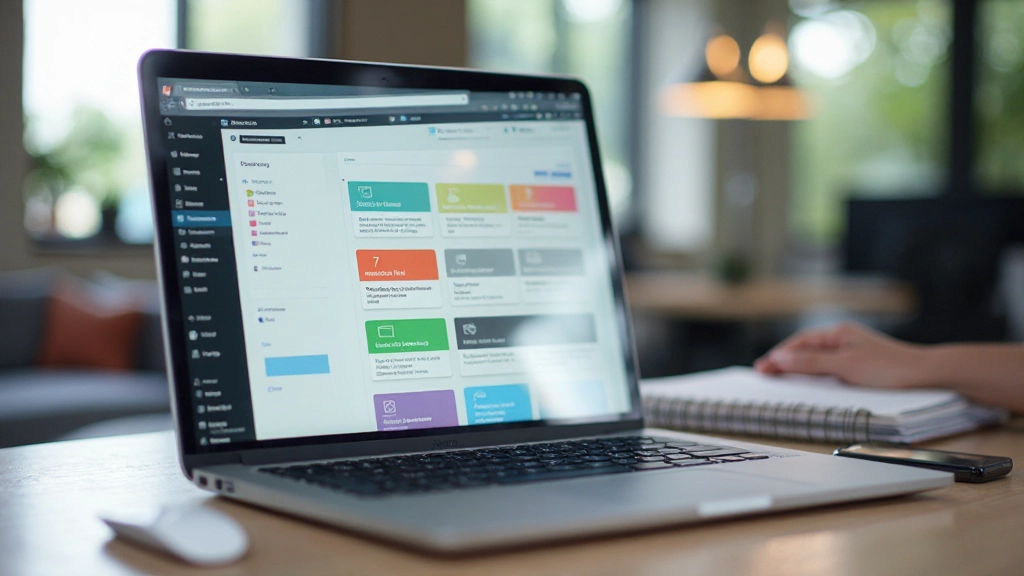
The Customizer is your best friend here. You’ll find it in WordPress admin under Appearance Customize. You can change header styles, footer layouts, sidebar positions, and often whole sections of your homepage—all visually, with live preview.
Pro tip: Look for themes specifically marketed as “customizer-friendly” or “no-code ready.” Themes like Neve, Astra, and OceanWP are built with non-technical users in mind.
What You Can Actually Achieve
No-code customization gives you more power than you might think. Here’s what’s realistically possible.
Complete Color Control
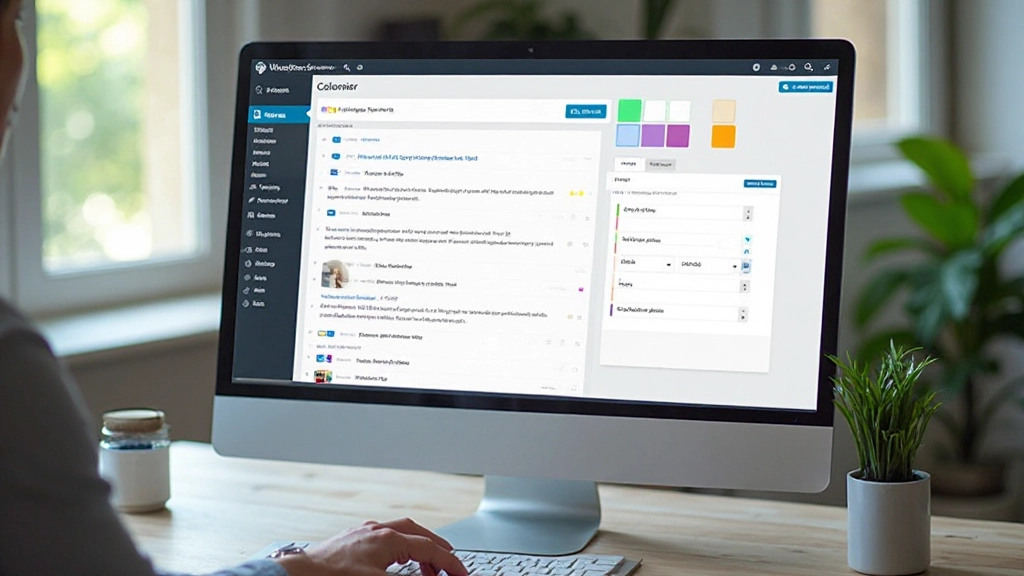
Change your brand colors everywhere on the site. Buttons, backgrounds, text, accents—all customizable through visual pickers without touching code.
Custom Typography
Choose from hundreds of Google Fonts, adjust sizes and weights, create visual hierarchy. Modern builders let you pair fonts beautifully without any coding knowledge.
Flexible Layouts
Create multi-column sections, stacked layouts, responsive grids. Drag elements around to experiment with different arrangements until it feels right.
Advanced Image Handling
Add parallax effects, image galleries, sliders, and background images. Apply filters, adjust opacity, and create visual interest without writing JavaScript.
Custom Forms
Build contact forms, surveys, and sign-up forms with drag-and-drop builders. Add validation, conditional logic, and integrations without backend work.
Mobile Responsiveness
Test your design on different devices and adjust layouts specifically for mobile, tablet, and desktop. See changes in real-time as you work.
A Practical Workflow That Actually Works
Here’s how most designers and small business owners actually approach WordPress customization. It’s simpler than you’d think, and it’s genuinely effective.
01
Choose Your Theme & Builder
Start with a theme that supports your chosen page builder. Most themes work with Elementor or Gutenberg out of the box. Don’t overthink this—you can always switch later.
02
Set Up Your Brand Colors & Fonts
Use the Customizer or builder settings to establish your color palette and typography. Define 3-4 main colors and 2 font families. This creates consistency across your entire site without any custom CSS.
03
Build Your Homepage with Templates
Most builders include pre-made sections for hero areas, feature lists, testimonials, and CTAs. Start with a template and customize it. You’ll have a professional homepage in an hour.
04
Create Remaining Pages
Build About, Services, Contact pages using the same templates and brand settings. The consistency is automatic because you’re using the same color and font definitions.
05
Test & Refine
Check your site on different devices. Adjust spacing, colors, and layouts as needed. Most page builders let you make changes live, so you’ll see everything immediately.
Essential Tools & Plugins for No-Code Customization
These tools complement page builders and make customization even easier.
Elementor Pro
Advanced templating, form builder with conditional logic, popup builder, and theme builder for headers/footers. It’s the most complete no-code solution available.
Gravity Forms
Industry standard for WordPress forms. Lets you build complex forms with conditional logic, multi-step processes, and integrations without touching code.
Yoast SEO
While mainly for SEO, it helps you optimize page structure visually. You’ll understand what makes good content without needing technical knowledge.
WP Rocket
Performance optimization with zero coding required. One-click caching, image optimization, and lazy loading improve site speed automatically.
MonsterInsights
Google Analytics without the complexity. Visual reports show you what’s working on your site without diving into technical data.
Smush Image Compression
Automatically optimizes images as you upload them. Keeps your site fast and looking professional without manual image editing.
Best Practices That Actually Matter
You’ve got the tools now. Here’s how to use them without creating a mess. These practices keep your site maintainable and professional-looking.
- Limit Your Color Palette: Stick to 3-4 main colors plus neutral shades. Too many colors look chaotic and hurt readability. Your builder’s global color settings make this easy to maintain.
- Keep Typography Simple: Use 2 font families maximum—one for headings, one for body text. Google Fonts offers thousands of options that work beautifully together.
- Use Consistent Spacing: Define your spacing scale early (8px, 16px, 24px, 32px, 48px) and stick to it. This creates visual rhythm and makes your site feel intentional.
- Don’t Use Every Feature: Just because your builder has 50 effects doesn’t mean you should use them. Restraint is professional. Use animations sparingly and only when they serve a purpose.
- Test Mobile First: Design for mobile, then add enhancements for larger screens. Mobile users are your majority—make sure they get a great experience.
- Keep It Fast: Optimize images before uploading, limit external scripts, and use lazy loading. A slow site feels broken, no matter how beautiful the design is.
You’ve Got Everything You Need
WordPress customization without coding isn’t a future concept—it’s here now and it’s genuinely powerful. You can build professional, custom websites using page builders, theme customizers, and visual tools. No PHP knowledge required.
Start with a solid theme, pick a page builder that feels intuitive, and spend time with it. You’ll be surprised how quickly you develop the skills to create exactly what you envision. The WordPress community is huge, documentation is abundant, and thousands of templates exist to accelerate your work.
Information Disclaimer
This article is educational in nature and covers general information about WordPress customization tools and practices. While the information presented is accurate as of February 2026, WordPress, its plugins, and page builders are constantly evolving. Features, pricing, and capabilities of tools mentioned may change. We recommend testing any tool in a development environment before implementing it on a live site. This article doesn’t constitute professional advice for your specific situation—always evaluate tools based on your particular needs and circumstances.